
How to install IDE Escalas in Holyrics
The module brings the service setlist and the Kids and parking notices to the projection computer. Download the file, import it in Holyrics and connect with a code that an administrator confirms in the app.
Tip: open this page on the computer where Holyrics projects.
What the module brings to Holyrics
Service setlist
The service setlist goes to the playlist that is open in Holyrics, with the Trazer setlist (Bring setlist) button. Only songs already in the Holyrics library are added, matched by title.
Service Mode (Modo Culto)
The Modo Culto (Service Mode) appears in the Holyrics Painel de Comunicação (Communication Panel).
Meeting codes
The group meeting code appears in large letters, with the Código do encontro (Meeting code) button. The Tirar da tela (Clear from screen) button closes whatever the module projected.
Kids notice on the projection screen
When a room calls the parents, the projection screen shows the notice. Only the room's name appears, never the child's name.
Parking notices
The projection screen shows the model, color, license plate and reason for the call, never the owner's name, and only when the notice on the phone did not solve it. The parking desk also announces a visitor's car.
Three things to have at hand
Holyrics 2.27 or newer
On the projection computer. The free version of Holyrics works.
Every IDE Escalas plan
The integration works on every IDE Escalas plan, including Free. Each notice only appears if the church's plan includes its module: Kids, Parking or Small Groups.
An administrator in the app
The connection is confirmed by a church administrator, in the IDE Escalas app. Keep that person nearby, with the app open.
Install in 8 steps
Do these steps on the projection computer. The screenshots are from Holyrics 2.30.0, in Portuguese, with demo data. Tap or click an image to enlarge it.
Download the module
The file is called IDE Escalas.js. If your browser asks, choose Keep.
IDE Escalas.js
The IDE Escalas module for Holyrics, straight from the IDE Escalas server.
Download the moduleNo Importar option in Holyrics? See If Importar (Import) does not appear.
Open the Holyrics modules
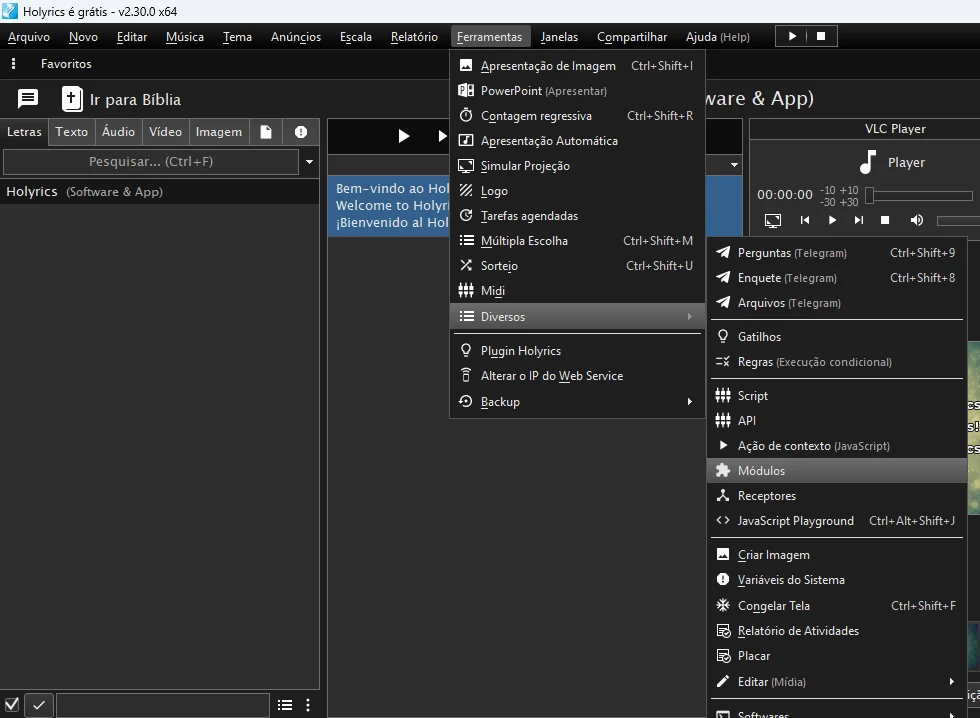
In Holyrics, open Ferramentas › Diversos › Módulos (Tools › Miscellaneous › Modules).
Import the file
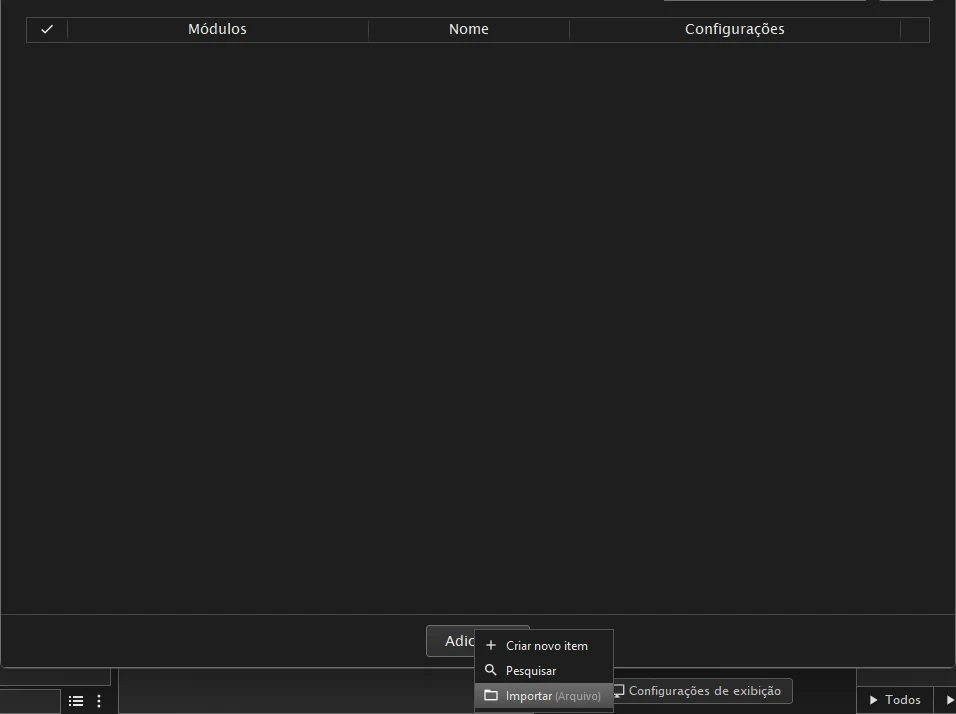
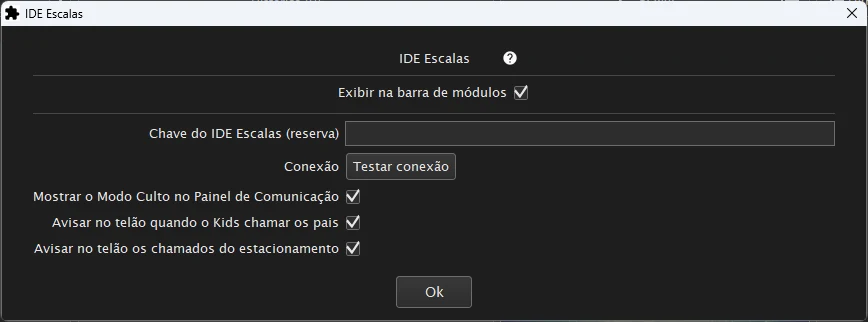
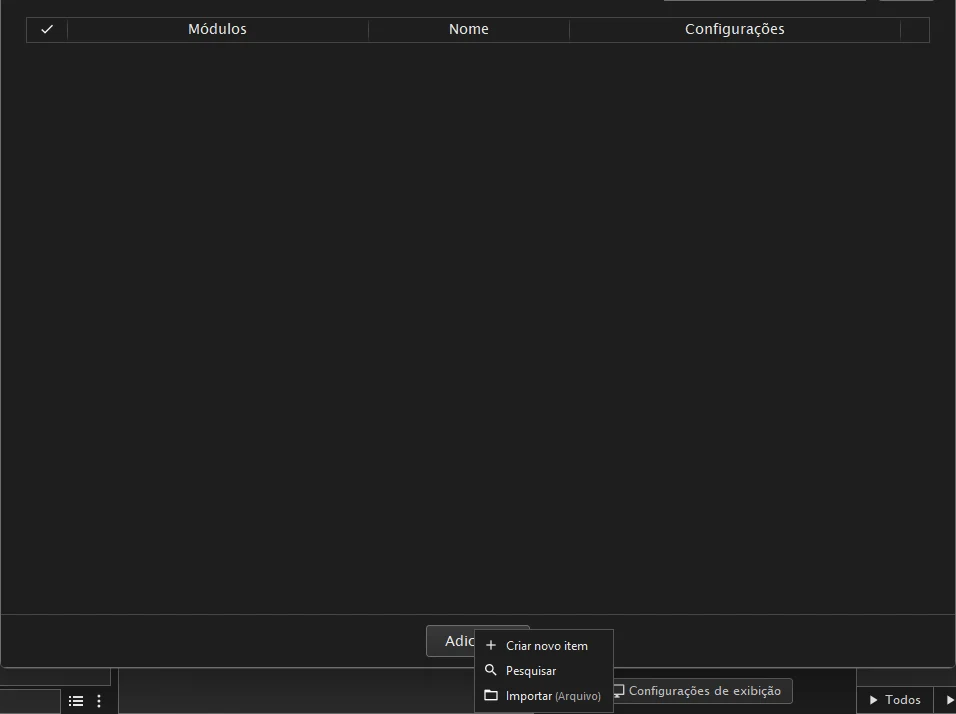
Click Adicionar › Importar (Arquivo) (Add › Import from file) and choose IDE Escalas.js. The module's settings window opens by itself: check the boxes and click Ok.
The boxes for Modo Culto (Service Mode), the Kids notice and the parking calls come checked: uncheck any your church does not want. The key field can stay empty, because the connection is made with a code, in step 6.
Turn the module on
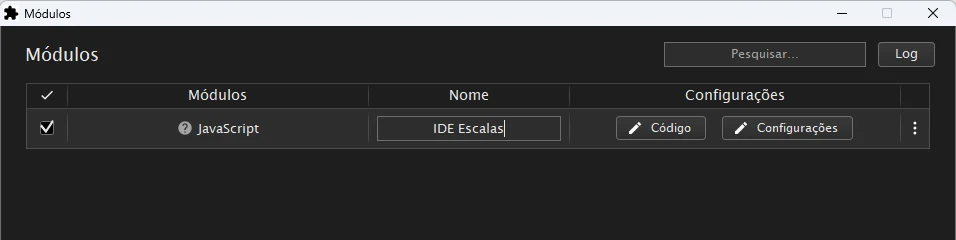
The module comes in turned off. Check the ✓ box on the IDE Escalas row.
Show the module bar
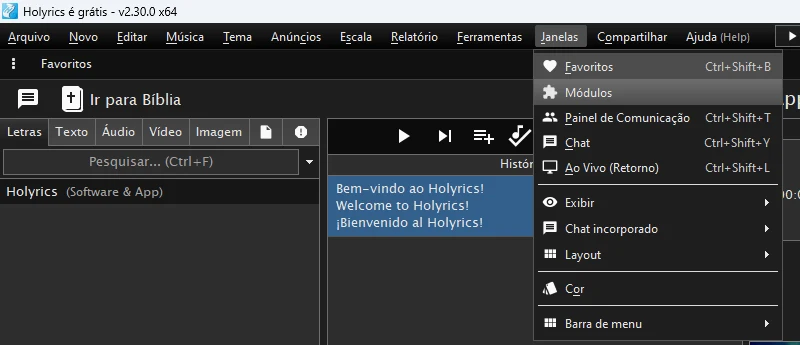
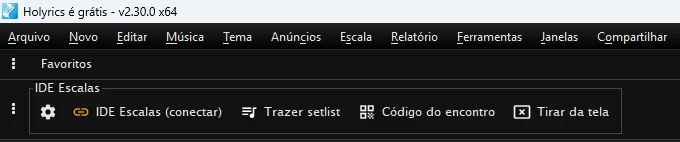
Open Janelas › Módulos (Windows › Modules) to show the module bar. The IDE Escalas group appears, with the module's buttons.
Ask for the connection code
In the IDE Escalas group, click the IDE Escalas (conectar) button (“conectar” means connect). A code appears, valid for 10 minutes.
Type the code in the app
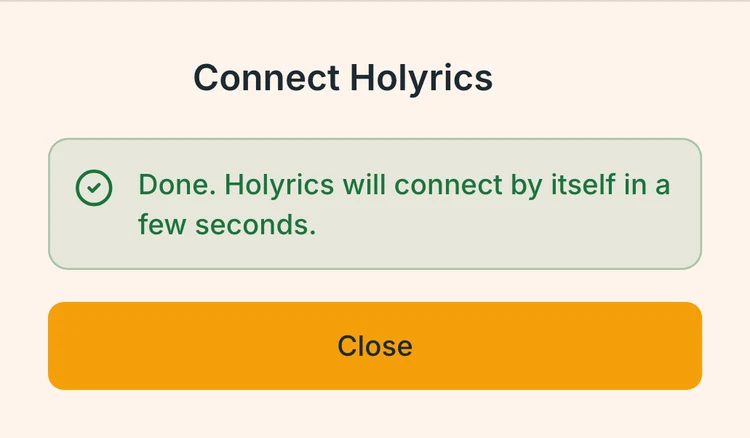
In the IDE Escalas app, an administrator opens Church › Integrations › Connect with a code and types the code.
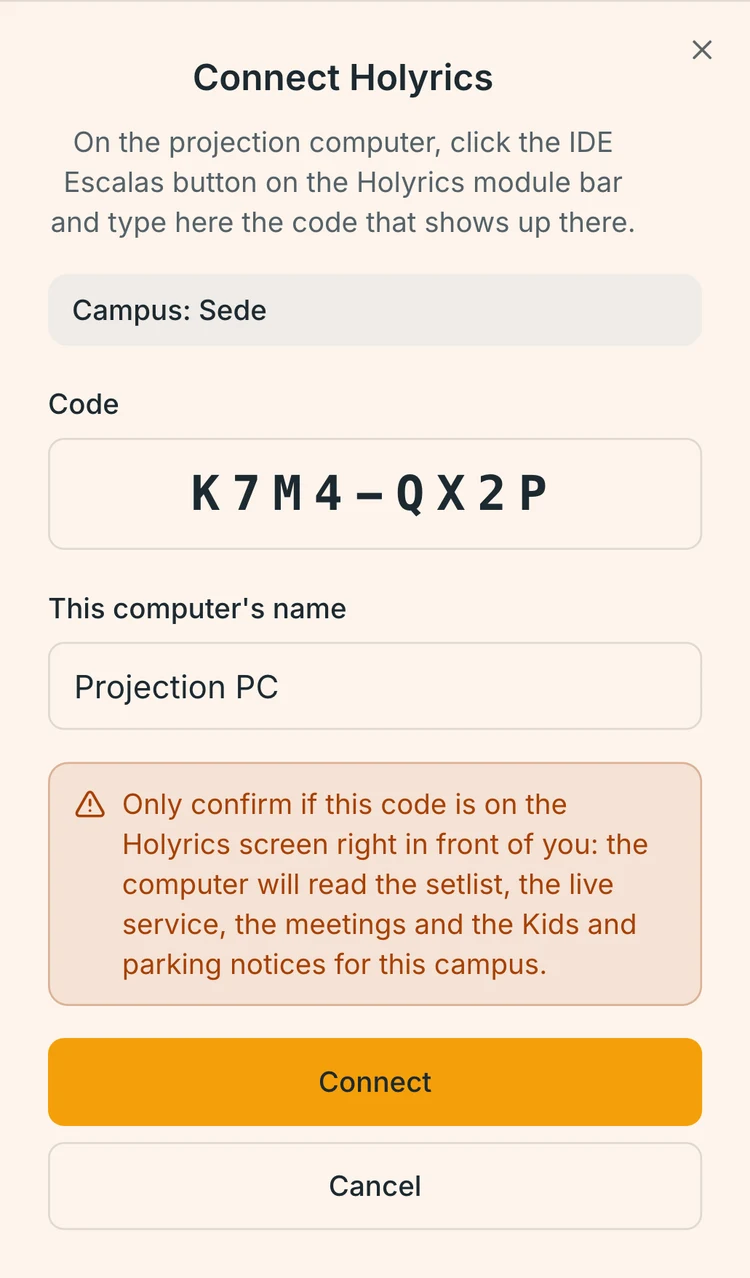 Opens the image at full size.
IDE Escalas screen with demo data. Done: connected
The button turns green, with the congregation's name. From then on, Trazer setlist (Bring setlist) puts the service setlist in the open playlist, and the Kids and parking notices run on the projection screen while a projection is open.
 Opens the image at full size.
 Opens the image at full size.
IDE Escalas screen with demo data.

If Importar (Import) does not appear
If Importar (Arquivo) (Import from file) does not appear in the Adicionar (Add) menu, you do not need to download the file: create the item by hand and paste the module code. Open the Holyrics modules, as in step 2, and continue like this:
In Módulos (Modules), click Adicionar › Criar novo item (Add › Create new item).
In the Nome (Name) field, type IDE Escalas.
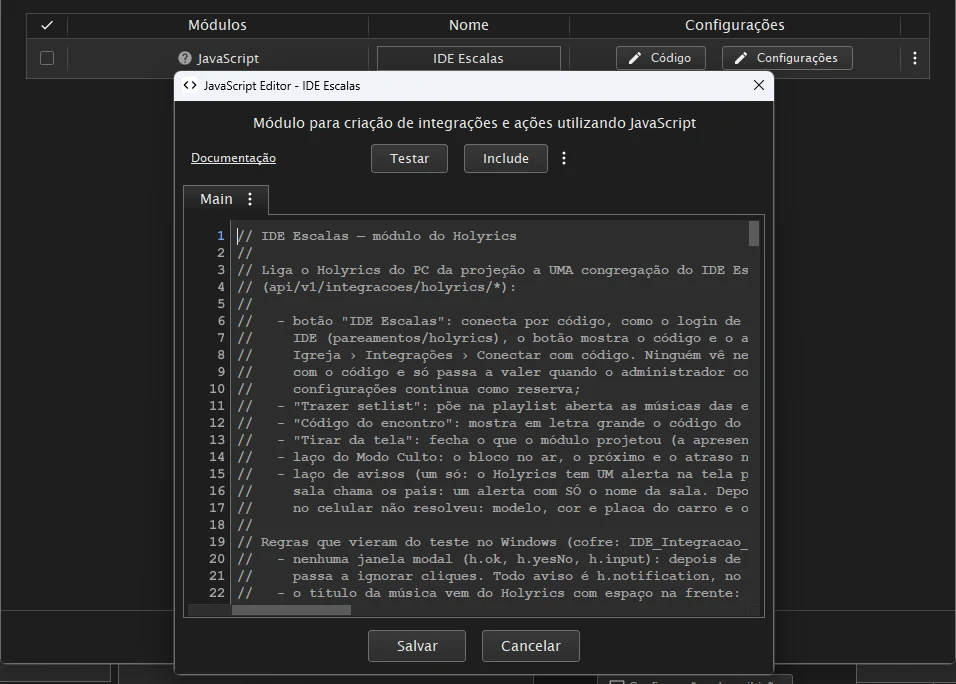
Click Copy code, just below. On the item's row, click Código (Code), delete whatever is already in the editor, paste the code and click Salvar (Save).
Check the ✓ box on the IDE Escalas row and continue from step 5.
Questions about IDE Escalas in Holyrics
The IDE Escalas module for Holyrics brings the service setlist, the group meeting code and the Kids and parking notices to the projection computer. It is installed by importing the “IDE Escalas.js” file in Ferramentas › Diversos › Módulos (Tools › Miscellaneous › Modules) and connected with a code, which an administrator confirms in the app.
Not using IDE Escalas yet? Start with 14 free days.
Every sign-up starts with 14 days with everything unlocked, no credit card.
Create free accountSee also
- Media teamOrganize your church's live stream, projection, photo and social media schedule without a messy WhatsApp group. Every volunteer knows their position. Free trial.
- Worship ministryBuild the worship schedule in minutes, share chord charts with key changes and send automatic reminders. Free 14-day trial, no card.
- Kids ministryKids ministry teacher and assistant schedule and, in the Full Management line, QR check-in for children, rooms by age and verified pickup.